
Description
Understanding Common Laptop Issues at a Glance
Three issues are commonly reported by laptop users everywhere: hinge stress, keyboard failure and charger failure. These are usually caused by dust, travel, heat and repeated plugging and unplugging.
In many cases the whole device is not at fault. A single weak part, such as the charging port or power adapter, is often the cause. For that reason, the exact fault is usually scanned and confirmed by a technician before a remedy is suggested.
Overview of Hinge, Keyboard and Charger Problems
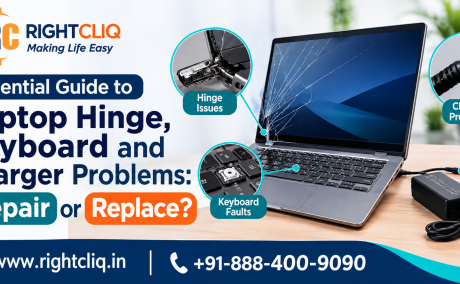
• When a hinge problem occurs, professional repair is recommended, so that the hinge is prevented from separating from the casing or screen. Repeated opening and closing, or an impact, is often the cause.
• If dead keys are seen, a keyboard fault is indicated. The replacement cost varies by laptop model and top cover design.
• Charger detection issues are caused by a faulty AC adapter, a damaged cable, a loose charging port, debris, an underpowered adapter, incorrect wattage or software issues.
• If the charger is not detected by the system, the battery driver and charging circuit are also checked as part of the charger repair.
How to Know if Your Laptop Hinge Is a Problem
A broken hinge does not repair itself. Resistance can quickly develop into visible damage around the lid, bezel or base.
If the screen is difficult to open, it should not be forced. Whether the hinge needs reinforcement or replacement is determined by a repair technician. Where the damage is severe, the repair vs replace question should also be discussed with the shop.
Signs Your Laptop Hinge Needs Attention
Early signs are easily missed until the lid begins to pull against the body. Surrounding internal parts can be affected by this, and normal use may become difficult.
Look for:
• Cracks around the hinge cover
• A popping sound when the lid is opened
• Screen misalignment
• Separation between the lid and base
• Uneven lid resistance
If the hinge is broken, has broken repeatedly or the frame is damaged, replacement should be considered instead of repair.
Repair Options for Damaged Hinges vs Replacement
The right choice depends on the severity. If stiffness is minor, the hinge may only need to be tightened and supported. Where severe cracks or torn mounts are found, the hinge and casing usually have to be replaced.
When repair charges keep increasing, or the display is reached by the damage, the shop should be asked about repair vs replacement. The decision should be based on safety, reliability, and whether the laptop’s life will be extended by the fix.
Solving Laptop Keyboard Issues
If a laptop keyboard is not working, it should not be assumed that the entire keyboard is broken. Some causes are software related and others are hardware related.
Simple checks should be made before a keyboard replacement is paid for. Whether the issue is temporary or the part has failed can be distinguished by a few steps at home.
What May Cause the Keyboard to Stop Working
Keyboard problems can be caused by software or by physical wear (spilled liquid, dust or worn keys).
Try these checks:
• Restart the laptop
• Update the keyboard driver
• Check Device Manager for warning signs
• Note whether only some keys fail or the whole keyboard is unresponsive
• Test with an external USB keyboard
If the external keyboard works but the built-in one does not, a hardware fault is likely.
Steps to Fix an Unresponsive or Faulty Keyboard at Home
1. The laptop should be restarted and the keys tested again, so that temporary system glitches are ruled out.
2. The keyboard driver should be updated or reinstalled from Device Manager.
3. Sticky Keys and Filter Keys should be checked in Windows accessibility settings, because input behaviour can be changed by them.
4. Debris under the keys should be gently removed with compressed air.
If keys are still not working after these steps, professional service should be arranged. A same day laptop keyboard replacement and charger repair service for dead keys and charging faults can be booked for confirmed hardware faults.
How to Diagnose Laptop Charger Problems
When a charger fails, battery failure may appear to be the cause. For this reason, the complete power path should be tested, and not only the battery icon.
The power outlet, power cord, adapter brick and laptop connector should all be inspected. If one link is loose, the laptop may appear to be plugged in but may not charge, or may charge very slowly.
Most Common Signs of a Charger or Power Cord Problem
• The charging cable should be checked for visible damage, such as fraying or cuts, which can interfere with power delivery.
• The adapter should be firmly connected to both the wall outlet and the laptop port. A loose connection can cause uneven charging.
• A different wall outlet or a compatible adapter should be tried, and the battery icon should be observed.
How Software Settings Can Affect Charging
Charging behaviour can be affected by software. If power management is not properly configured, charging can be limited by Windows. Battery and power settings should be reviewed, and the battery driver (“Microsoft ACPI-Compliant Control Method Battery” in Device Manager) can be uninstalled and the laptop restarted, so that it is reinstalled automatically.
Reduced power delivery can also be caused by outdated drivers or incorrect power settings. Battery health is helped, and the laptop’s lifespan is extended, when regular operating system updates are installed.
Laptop Charger Problem-Solving Guide: Start to Finish
1. The charging cable should be checked first for damage.
2. The power outlet and charger connection should be checked.
3. The adapter, cable and charging port should be inspected for visible damage.
4. Another working outlet should be tested.
5. If the charging light does not turn on, the adapter should be tested with a multimeter or a known-good adapter.
6. A different compatible charger should be tried, or professional support should be contacted if the laptop still does not charge.
At-Home Troubleshooting for Laptops That Won’t Charge
Some basic checks can be made before professional repair is sought:
• All connections should be secured.
• The laptop should be restarted and the battery status reviewed.
• The charging port should be checked for looseness, unusual heating or warning messages.
How to Tell Whether It Is the Charger or the Laptop
Time and effort can be saved when it is determined whether the charger or the laptop is causing the charging issue. The power cord and charging port should be checked for damage first, since lower power levels can be caused by a damaged port.
Next, the battery icon should be checked. If a swollen battery is seen, or the laptop does not respond even when plugged in, an internal part is most likely at fault, or a new battery may be needed.
A battery report can also be generated on Windows by running powercfg /batteryreport in Command Prompt. The battery’s design capacity and current capacity are shown in it, so a worn battery can be separated from a faulty adapter.
Comparing Repair and Replacement Costs: Which Is Better for Long Life?
Whether to repair or replace a laptop depends on several factors. The battery health, any damage and general wear should be examined before a decision is made.
The combined cost of multiple repairs should be compared with the price of a new laptop, which may be more reliable and offer better features. If the laptop model is aging, better performance and longevity may be provided by a new one.
The Bottom Line
Laptop problems can be stressful, but the right choice is easier to make when the causes are understood. The benefits of repair over replacement should be weighed so that the longest possible lifespan is achieved. Regular maintenance and early attention to warning signs make the laptop experience better.
When problems are found with the hinge, keyboard or charger, the right route should be chosen, so that the laptop’s life is prolonged. An expert laptop hinge repair or replacement service for broken, loose or stiff hinges can be booked whenever a professional opinion is needed.
Resources : https://homeaplliancesrepairservice.blogspot.com/2026/11/essential-guide-to-laptop-hinge.html
Quick Details
Reviews
To write a review, you must login first.
From the Same Seller
Essential Guide to Laptop Hinge, Keyboard and Charger Problems: Repair or Replace?

Inverter and UPS Battery Service: 8 Signs You Need One

RO Water Purifier Servicing: Does It Really Improve Performance?

How RightCliq Is Bringing Reliable Doorstep Pest Control to Bangalore Homes
Location
Seller Info